How to Bulk-Import Product Categories
Last Updated: July 22, 2025
This guide provides a step-by-step walkthrough for bulk-importing your product categories and their sub-categories into Tracepos using a CSV template file. Following this process is the fastest way to set up your store's organizational structure.
Before You Begin:
- Ensure you have a complete list of your product categories and their parent/child relationships.
- You must have Manager or Admin level access to access the Inventory Management section.
Step 1: Download the Category Import Template
First, you need to download the correctly formatted template file from your Tracepos account.
- From your Tracepos dashboard, navigate to the side menu and click on Inventory Management.
- Under the Inventory section, select Categories.
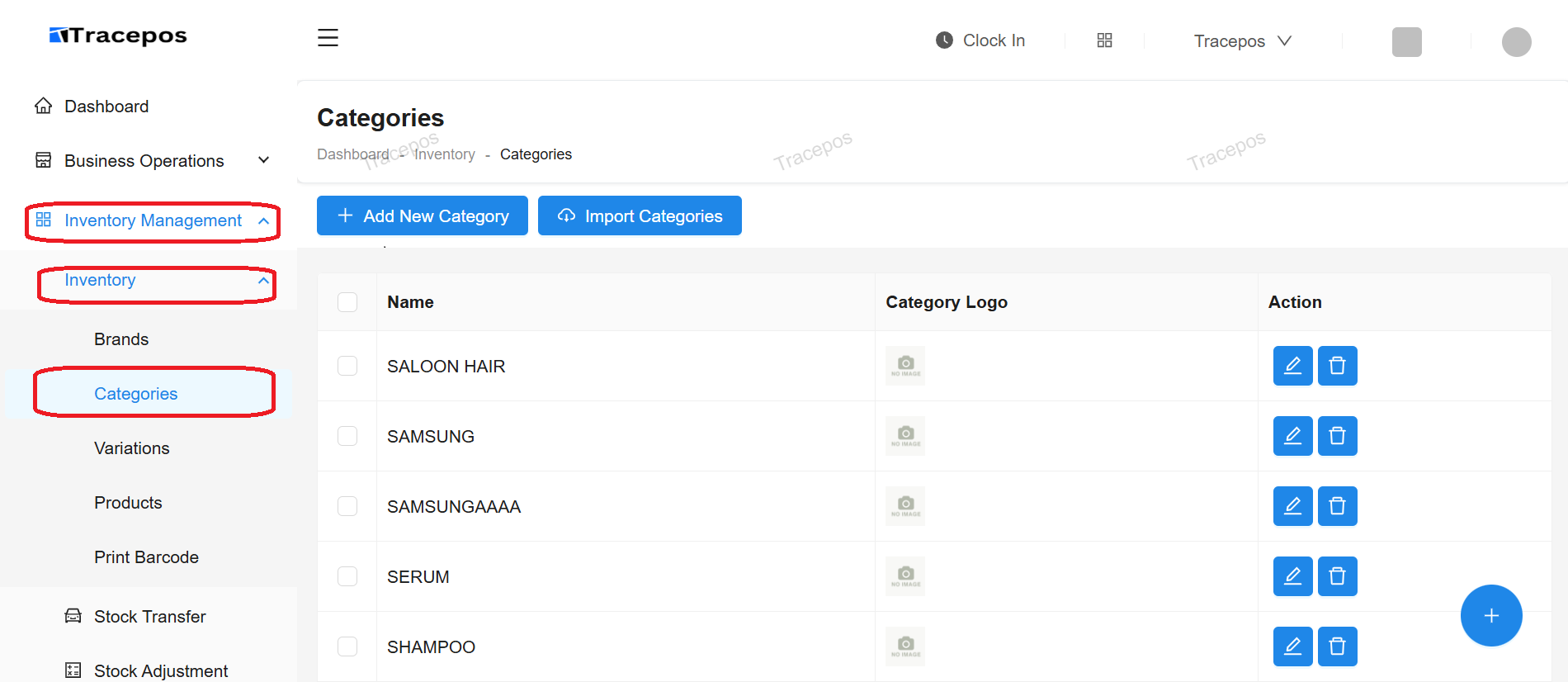
- On the Categories page, click the "Import Categories" button located at the top left.
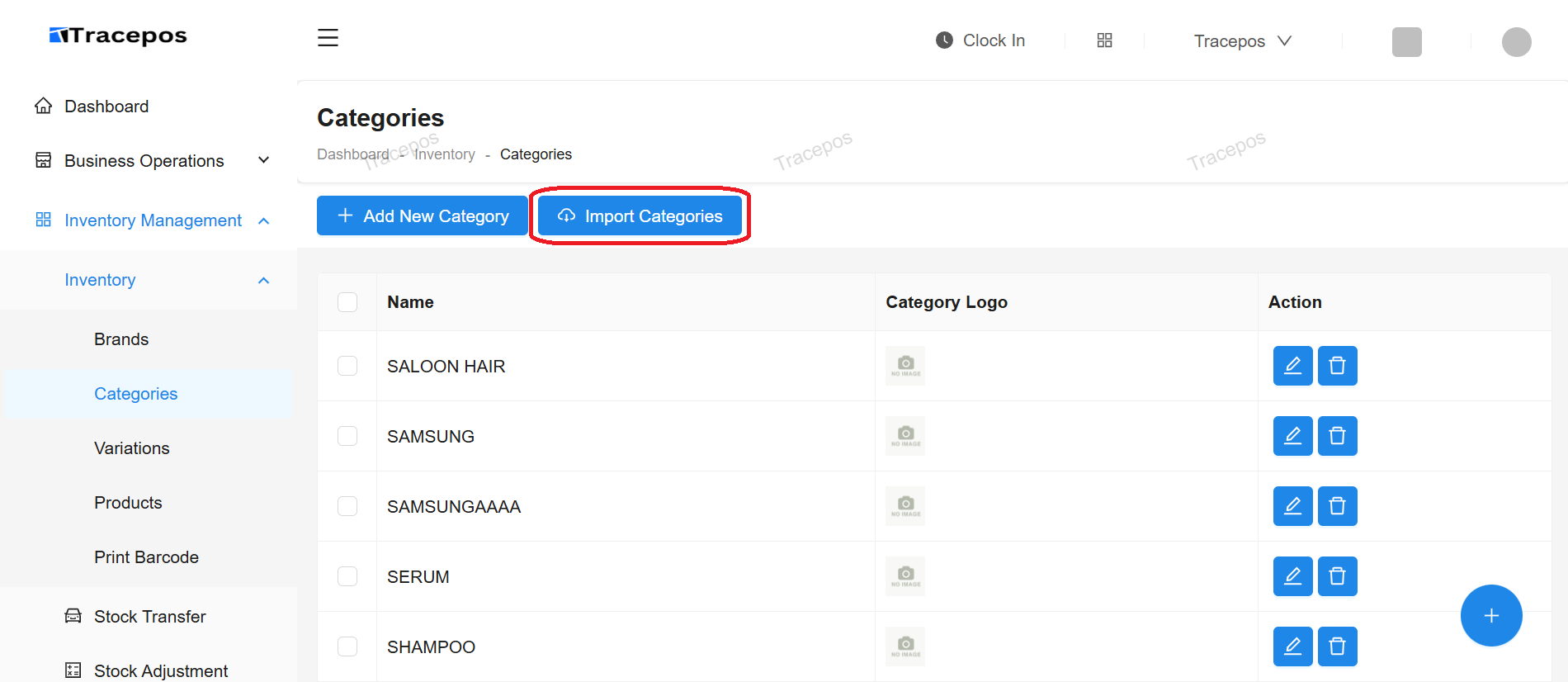
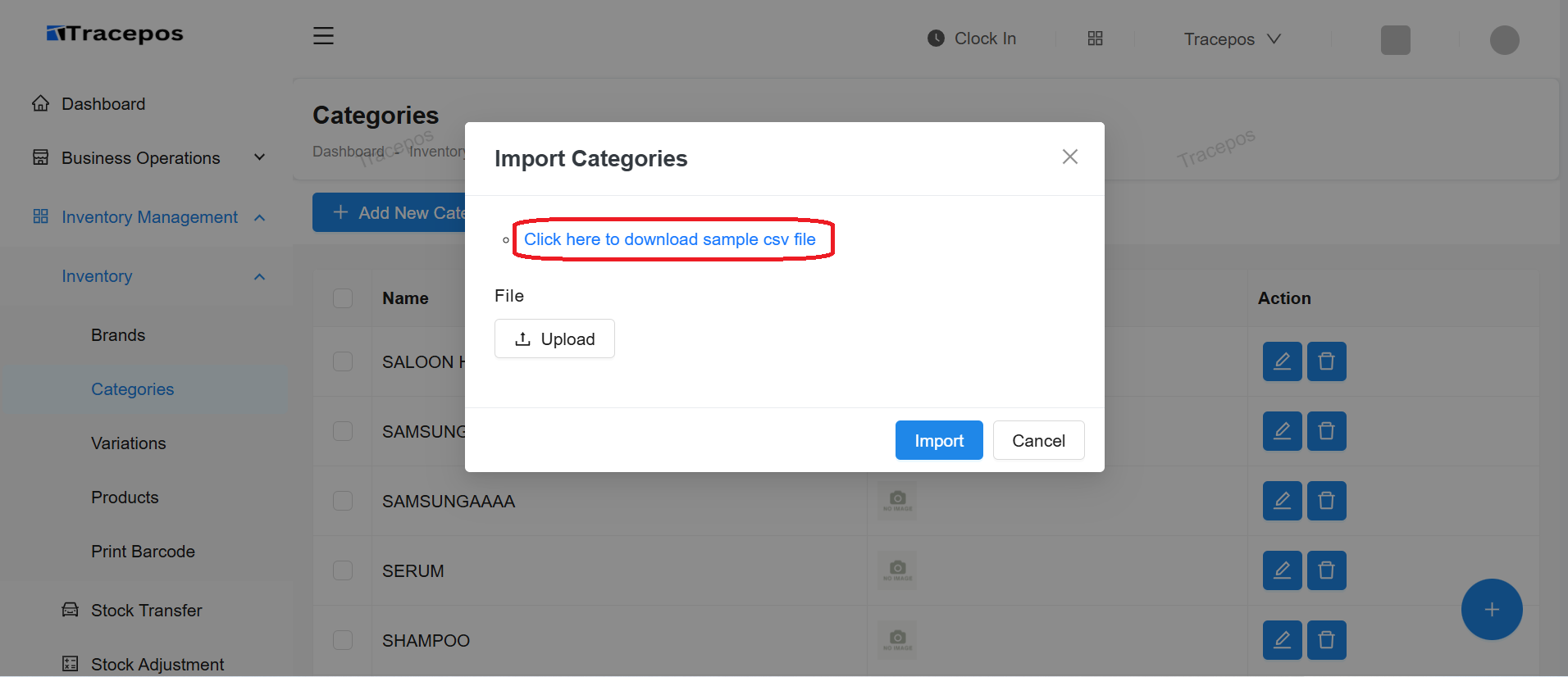
- A new screen will appear. Click on the blue hyperlink text that says "Click here to download sample csv file". This will download the template named
sample_categories.csvto your computer.
Step 2: Format Your CSV Import File
This is the most critical step. Correctly formatting your file ensures a successful import.
- Open the downloaded
sample_categories.csvfile using Microsoft Excel, Google Sheets, or any other spreadsheet software. - You will see two columns: name and parent_category. Delete the sample data in the file, keeping only the header row.
- Enter your category data based on the following rules:
- For Main/Parent Categories: Enter the category name in the name column and leave the parent_category column completely blank.
- For Sub/Child Categories: Enter the sub-category name in the name column and enter the exact name of its corresponding parent category in the parent_category column.
Important: The name you enter in the parent category column must exactly match a name that is already listed as a parent category in the name column.
Example:
Let's say you are setting up an electronics store. You want the main categories to be "Computers & Tablets" and "Mobile Phones". Then, you want sub-categories like "Laptops" and "iPads" under "Computers & Tablets".
Your CSV file should look like this:
| name | parent_category |
|---|---|
| Computers & Tablets | |
| Mobile Phones | |
| Laptops | Computers & Tablets |
| iPads | Computers & Tablets |
| Android Phones | Mobile Phones |
| iPhones | Mobile Phones |
- Once you have entered all your categories, save the file to your computer. Ensure it remains in CSV (Comma-Separated Values) format.
Step 3: Upload the File to Tracepos
Now that your file is ready, you can upload it to Tracepos.
- Return to the "Import Categories" screen in Tracepos. If you closed it, simply navigate back via Inventory Management > Categories > Import Categories.
- Click the Choose File or Upload button.
- Locate the
sample_categories.csvfile you just saved on your computer and select it. - After selecting the file, you will see its name appear on the form. Click the final Import button to begin the import process.
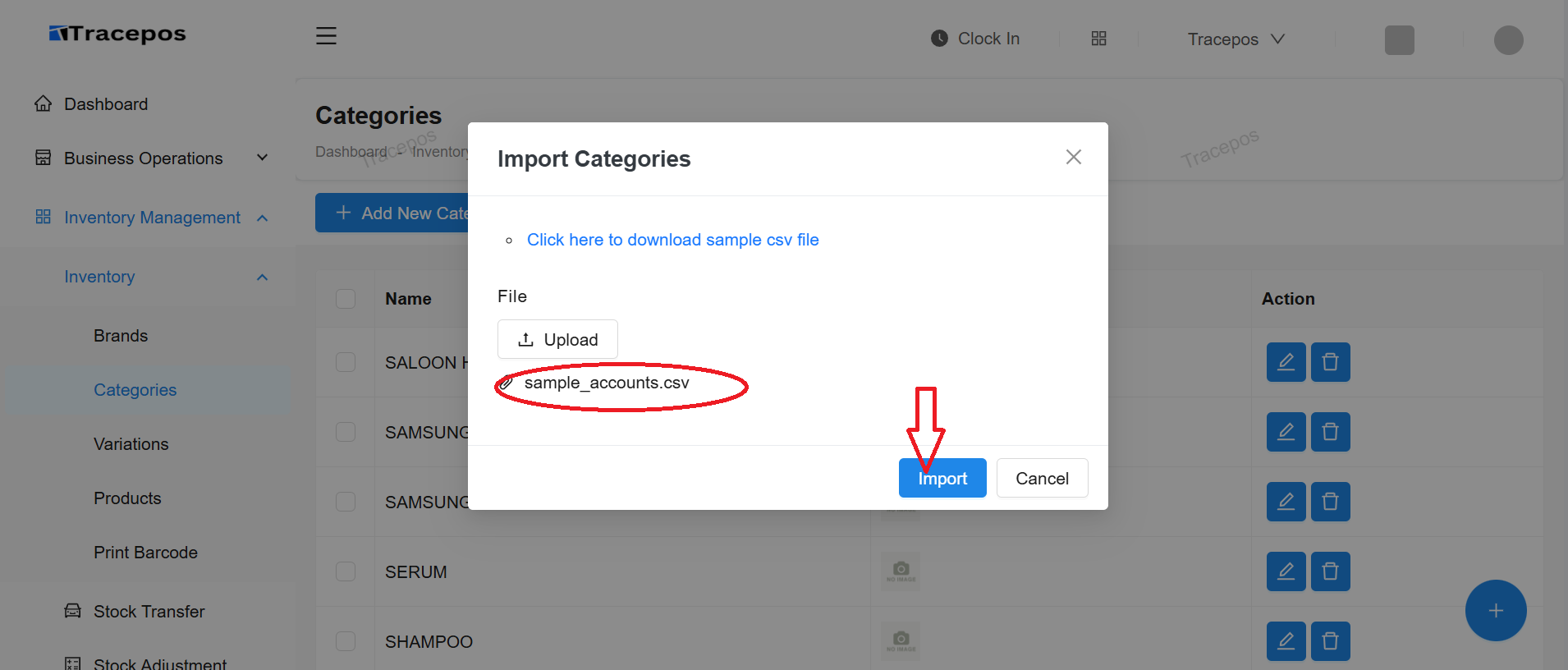
- The system will process the file. Once complete, you will see a success message, and your new categories will appear on the main Categories page, correctly nested according to your file.
Congratulations! You have successfully imported your entire category structure into Tracepos. You can now begin adding products to these categories.