How to Bulk-Import Product Brands
Last Updated: July 21, 2026
This guide provides a step-by-step walkthrough for bulk-importing all of your product brands into Tracepos using a CSV template file. This process is much simpler than importing categories as it does not involve parent/child relationships.
Before You Begin:
- Ensure you have a complete list of all the brands you carry.
- You must have Manager or Admin level access to access the Inventory Management section.
Step 1: Download the Brand Import Template
First, you need to download the correctly formatted template file from your Tracepos account.
- From your Tracepos dashboard, navigate to the side menu and click on Inventory Management.
- Under the Inventory section, select Brands.
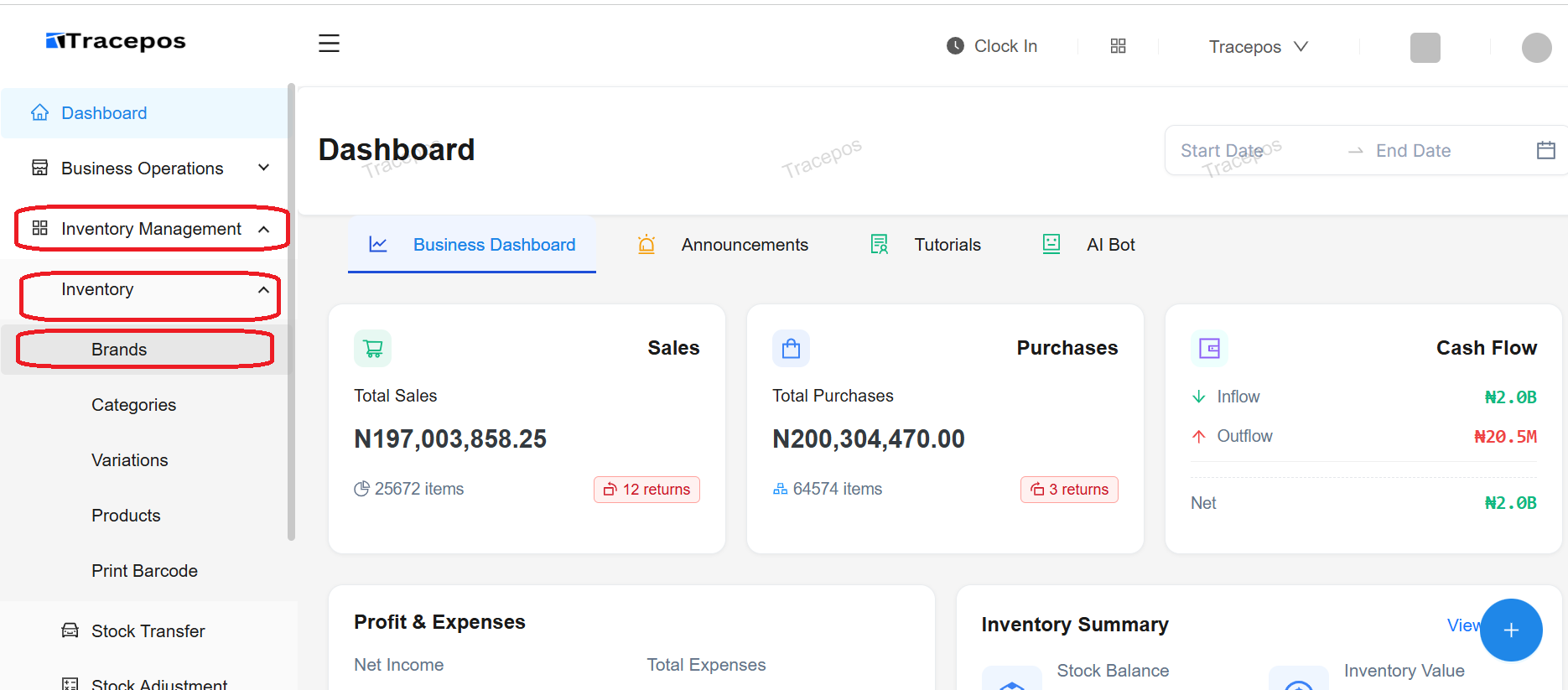
- On the Brands page, click the Import Brands button located at the top right.
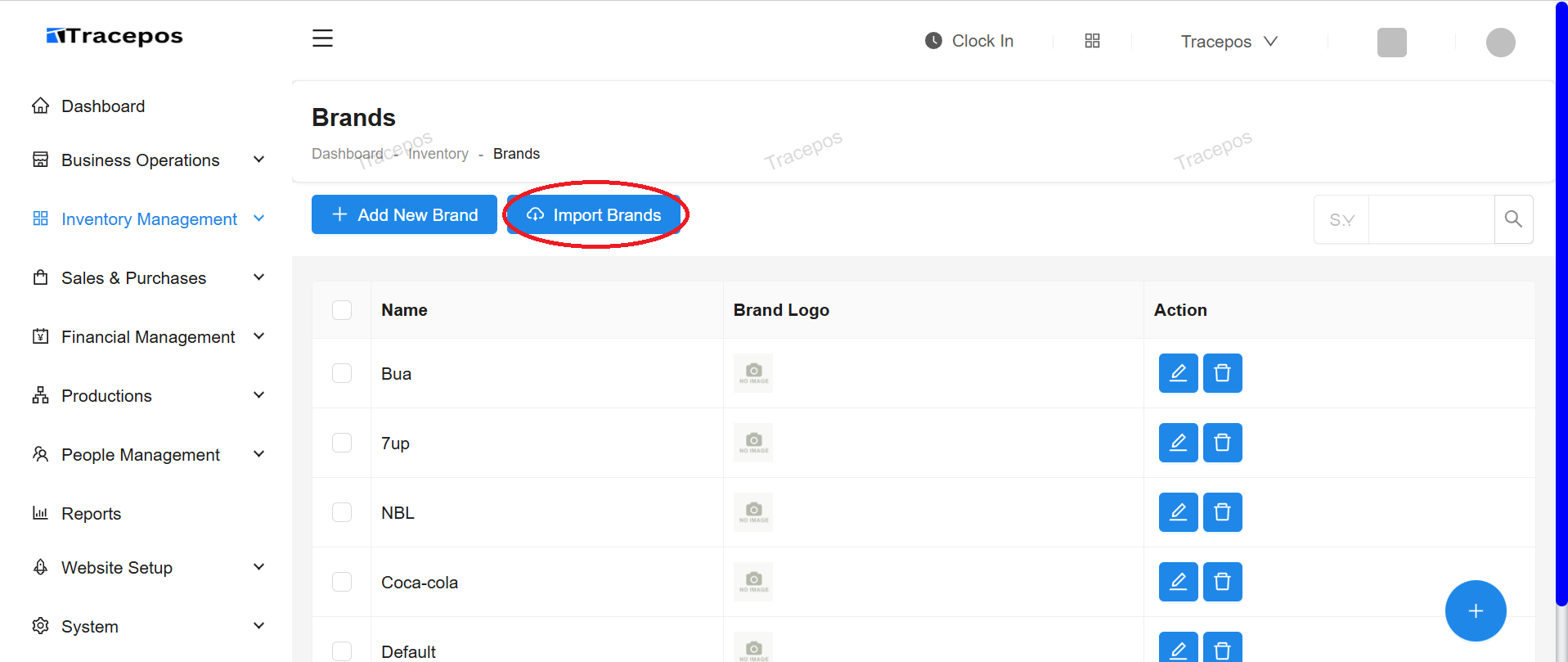
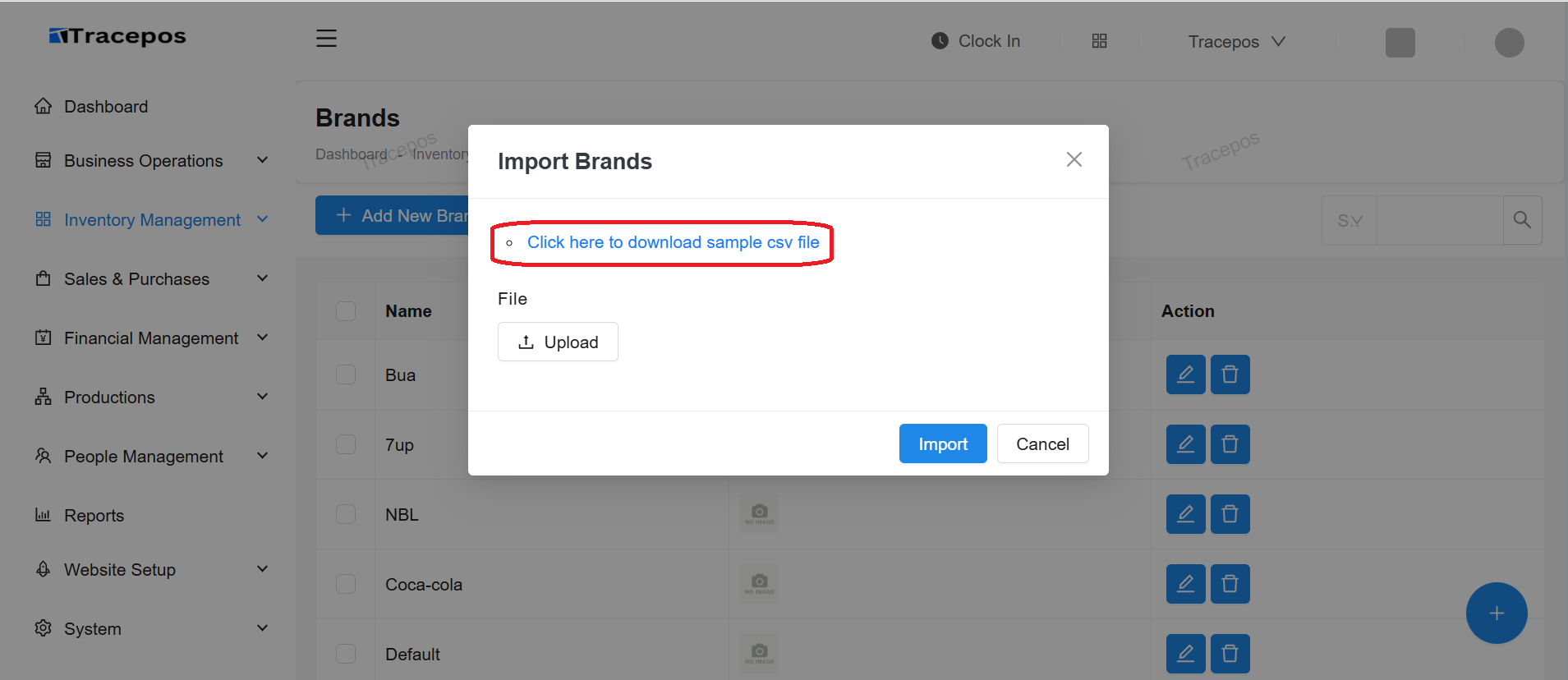
- A new screen will appear. Click on the blue hyperlink text that says "Click here to download sample csv file". This will download the template named
sample_brands.csvto your computer.
Step 2: Prepare Your Brands CSV File
Next, you will add your brand names to the template file.
- Open the downloaded
sample_brands.csvfile using Microsoft Excel, Google Sheets, or any other spreadsheet software. - You will see a single column header: name. Delete any sample data in the file, keeping only the header.
- Enter or paste all your brand names into the name column. Each brand should be on its own row.
Pro-Tip: How to Get Your Brand List Quickly
If you already have a master spreadsheet of all your products, you can save a lot of time. Simply copy the entire "Brand" column from your product list and paste the values directly into the name column of the
sample_brands.csvtemplate. Be sure to remove any duplicate names before saving.
- Once you have entered all your brand names, save the file to your computer. Ensure it remains in CSV (Comma-Separated Values) format.
Your final file should look like this:
| name |
|---|
| Apple |
| Samsung |
| HP |
| Dell |
| Sony |
Step 3: Upload the File to Tracepos
Finally, upload your completed file to import the brands.
- Return to the "Import Brands" screen in Tracepos.
- Click the Choose File or Upload button.
- Locate the
sample_brands.csvfile you just saved on your computer and select it. - After selecting the file, you will see its name appear on the form. Click the final Import button.
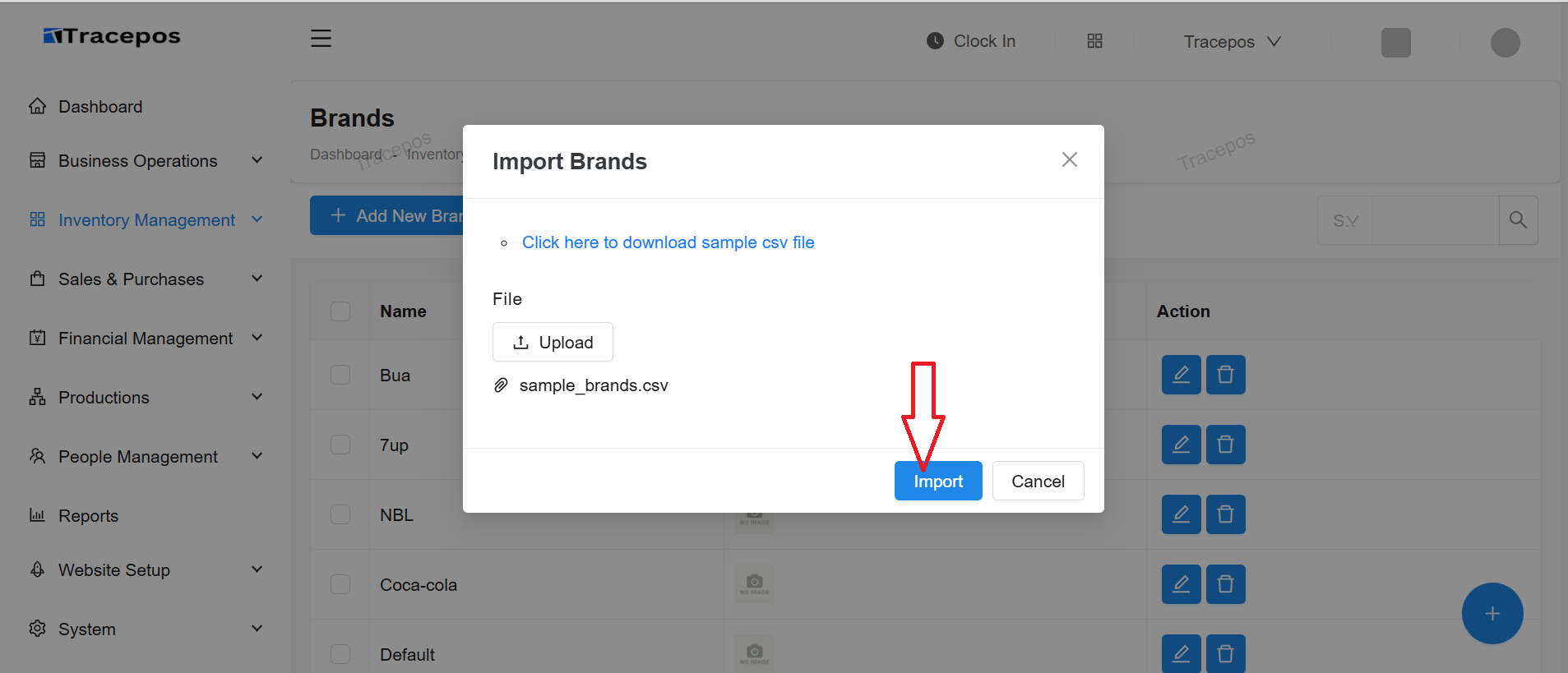
- The system will process the file and import all the brand names. You will see a success message, and your brands will now be available when adding or editing products in Tracepos.
Congratulations! You have successfully imported your brand list into Tracepos.